

VoIP Call Quality Troubleshooting: What to Check First
Investigate choppy or unreliable business calls with a symptom log, endpoint comparisons, network observations, controlled tests, and a useful provider escalation packet.
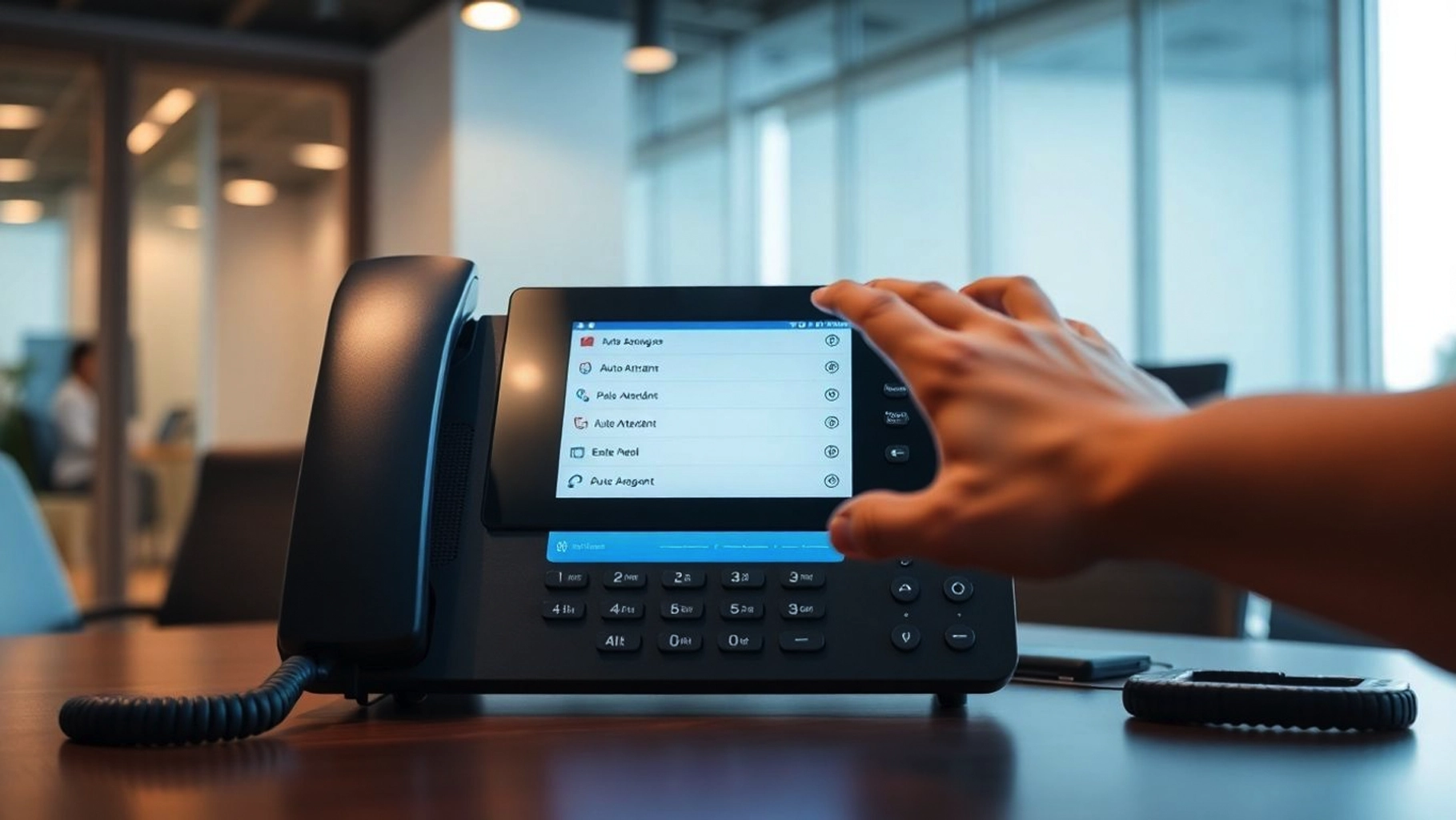
Customers say calls sound broken, but staff report that the internet is working. One employee hears the problem on Wi-Fi while another has clear calls from a desk phone.
VoIP call quality troubleshooting should start with that difference. A useful investigation describes the symptom and compares paths before changing settings.
This guide helps a small business collect evidence and coordinate support. It does not provide a universal router configuration or promise that one adjustment fixes every phone system.
SMART takeaway
Start with one call you can describe.
Record when it happened, who heard the problem, which device and network were involved, and what changed. Then compare controlled calls to narrow the affected path.
Define the symptom before naming the cause
Distinguish choppy speech, delay, echo, one-way audio, a dropped call, and a call that never connects.
Record whether one party or both hear the problem. Ask whether it affects incoming calls, outgoing calls, internal calls, transferred calls, or a particular location.
A one-way-audio symptom and a quality problem may require different investigation. Avoid assigning every complaint to “slow internet.”
Include the time and timezone, extension, call direction, device, network connection, and relevant provider reference. Limit personal information to what the authorized support team needs.
Why ordinary browsing is an incomplete test
Cisco’s choppy voice troubleshooting guidance explains that lost packets, excessive delay, and varying delay can interfere with voice.
Those real-time conditions are different from simply opening a webpage. A successful browser test does not identify the path that carried a particular call.
The Cisco document is longstanding technical guidance. This article uses its general principles rather than recommending its historical device commands for a modern deployment.
Have the administrator interpret measurements against the installed system and provider’s requirements. This guide does not assert a universal jitter or loss threshold.
1. Collect a short symptom log
Use a shared, authorized support record for several affected examples.
Include one successful comparison if available. “The same extension was clear on a wired connection at the same location” is more actionable than “calls are bad sometimes.”
Record recent changes such as a new headset, application update, access point, firewall policy, internet service, or relocation.
Avoid asking employees to capture customer conversations merely to document a technical complaint. Use approved test calls where practical.
The call recording planning guide addresses the separate authorization questions around recording.
2. Compare endpoints and audio equipment
Run controlled calls with the affected application and an approved alternative device or headset.
Change one factor at a time. If both the endpoint and network change together, it becomes harder to determine which difference matters.
Check mute state, selected microphone and speaker, physical connections, and supported software versions through normal support procedures.
Record the result even if it does not isolate the problem. A clear comparison reduces guesswork for the next person investigating.
3. Compare wired, wireless, and remote paths
With authorization, compare the affected workflow on the office wired network, office Wi-Fi, and an approved remote path.
Include the location and access point where applicable. Test while seated and, if the workflow requires it, while moving through the space.
A successful test on another path helps narrow the investigation; it does not automatically prove a particular component is defective.
Our business Wi-Fi planning guide connects coverage, capacity, security, and voice use. The network monitoring guide helps identify observations and alerts worth retaining.
4. Review load and policy at the time of the call
Ask the administrator to compare call times with network use, equipment alerts, and provider observations.
Look for evidence of contention, errors, or a policy change on the affected path. Avoid assuming a speed-test result taken later describes the conditions of the call.
Cisco emphasizes provisioning adequate bandwidth before applying measures to reduce jitter. Traffic prioritization should therefore be reviewed as part of a supported network design, not treated as a substitute for adequate capacity.
Do not disable the firewall or broadly open ports as an experiment. Have the responsible administrator verify the platform and provider requirements.
5. Use the platform’s supported diagnostics
Gather the relevant call identifiers and logs using the installed system’s documented tools.
3CX documents a network capture capability for troubleshooting and support. The administrator should verify the process for the deployed version and use captures only with the appropriate authorization.
Captures and support packages can contain sensitive network information. Store and share them through the provider’s approved support channel.
Ask the provider what evidence it needs before collecting large amounts of data. A focused capture or call reference is easier to investigate than an unexplained archive.
6. Prepare an escalation packet
- Symptom, affected users, call direction, and business impact
- Example times, timezone, extensions, and provider call references
- Device, application, headset, and connection details
- Successful and failed comparison tests
- Recent changes and observations at the relevant time
- Authorized logs or diagnostic files requested by support
Identify which team owns the next step: endpoint support, local network support, hosted platform support, or the phone provider. Record handoffs so the request does not stall between vendors.
7. Verify the fix under representative conditions
Repeat the affected call pattern after a change. Check incoming and outgoing calls, relevant devices, and the locations where complaints occurred.
Document what changed and the evidence that supports improvement. A single clear call is encouraging but may not resolve an intermittent issue.
Keep a fallback communication route where the business requires it. The VoIP failover guide addresses outage continuity separately from ordinary call-quality diagnosis.
Call quality FAQ
Should we buy a faster internet plan first?
Investigate the affected path and actual conditions before selecting a remedy. Capacity may matter, but the evidence should guide the decision.
Does QoS guarantee clear calls?
No. It is one part of a supported network design and cannot establish that every endpoint or external path works properly.
Can SMART Solutions help coordinate troubleshooting?
SMART Solutions provides VoIP planning and support, WiFi Network Improvements, and network services. Contact our team with the symptom log and affected workflow.
Good troubleshooting turns a vague complaint into a sequence of evidence-backed decisions. Start with a clear example and preserve what each test shows.