
Security Camera Remote Access: A Business Checklist
Plan remote camera viewing around named users, limited permissions, supported access methods, network boundaries, updates, mobile-device changes, and revocation tests.
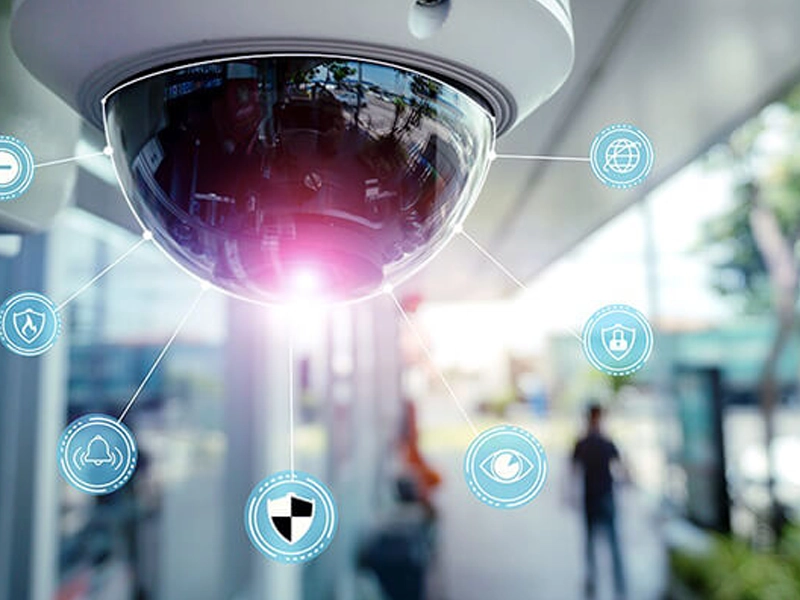
A manager wants to check the cameras after hours. An installer provides an app, and the picture appears on the phone. The business still needs to decide who can view recordings, who can export them, and how access ends when that phone or employee changes.
Security camera remote access is an access-management project as well as a convenience feature. The connection method, user permissions, and operating process should be reviewed together.
The right design depends on the cameras, recorder, video management system, network, and supported vendor services. Do not assume every platform uses the same remote-access method.
SMART takeaway
A working picture is only the first test.
Verify the authorized users, permitted actions, supported connection path, and removal process. Test local recording separately from remote viewing.
1. Define who needs access and what they may do
List the roles: business owner, site manager, security operator, IT administrator, and installer or support provider.
For each role, decide whether it needs live viewing, playback, export, configuration, or user management. Record which locations and cameras fall within its scope.
Use the platform’s supported permissions. If it cannot implement the intended separation, document the limitation and decide whether a different arrangement is needed.
Avoid granting administrator access to every person who needs a quick look at live video.
2. Identify the actual remote path
Have the installer document how the app or client reaches the system: a supported vendor service, an approved VPN arrangement, or another authorized method.
Record the responsible organization and dependencies. Include any company-controlled account or service subscription involved.
Axis’s hardening guide recommends limiting internet exposure and avoiding public access to its devices by unknown clients. It also advises consulting the video management vendor for remote-access practices.
That guidance supports a deliberate design rather than exposing a recorder simply because it makes a test connection easy.
3. Check the platform’s supported access method
As a vendor-specific example, Axis describes Secure Remote Access v2 as a remote-access method that removes the need for manual port forwarding in supported setups.
Confirm the actual product, version, account arrangement, and requirements before choosing such a method. This article does not claim that a feature exists on every recorder or that SMART Solutions has deployed that particular platform for your business.
For VPN-based designs, review identity, devices, permissions, and scope using the business remote-access checklist.
The method should meet the business’s needs while keeping administration understandable.
4. Use named accounts and appropriate protection
Create individual accounts where the system supports them. Keep installer and staff access separate.
Axis recommends dedicated accounts and secure administration in its hardening guidance. Use those principles with the installed platform’s controls.
Require the supported account-protection options appropriate to the selected service. Verify where MFA applies rather than assuming that enabling it on one portal protects every local login.
Document recovery ownership and administrator contacts. Do not place passwords in app instructions distributed to all staff.
Use the user access review guide to track ongoing permissions.
5. Keep the camera network boundaries intentional
Map cameras, recorder, management clients, and remote-access dependencies. Have the administrator review the traffic that must cross between them.
Use the network segmentation guide to connect the surveillance design with employee, guest, and management networks.
Avoid broad exceptions that give remote viewers access to unrelated business systems. Record any required access path and its purpose.
Also check maintenance access. A support provider’s configuration session may need a different permission scope and duration from a manager’s routine viewing.
6. Separate viewing success from recording health
From an authorized remote account, test the permitted live views, playback, and export if required. Confirm that restricted actions remain restricted.
Then check the recording system locally or through its approved administrative process. A remote app displaying live video does not demonstrate that historical recording is healthy.
The camera maintenance checklist covers recording and system health. The footage export guide covers the separate handoff of selected recordings.
Test under representative conditions and record the scope. Do not label every location and user verified after checking only one phone.
7. Plan for lost devices and staff changes
Define whom an employee contacts if a phone is lost or remote access is no longer required.
The administrator should know how to revoke the account or relevant sessions using the selected platform’s supported controls. Test that removal actually stops the intended access.
Review stored credentials and shared accounts if they exist. Removing a mobile app is not a complete revocation procedure when the same account can still sign in elsewhere.
Connect staff departures with the employee offboarding process and provider changes with the vendor access guide.
8. Maintain the configuration and support record
Record product and software versions, responsible administrators, approved remote method, user roles, support contacts, and the last access test.
Review supported updates and changes through the maintenance process. Avoid an unplanned factory reset as a shortcut when remote access stops working.
Assign an owner to alerts or access logs where the platform provides them. Determine what the team will review and how it will respond.
Keep a support route for ordinary connectivity problems that does not depend on giving everyone administrator credentials.
Remote camera access acceptance checklist
- Authorized people and permitted actions are recorded
- The remote connection method is supported and documented
- Account protection and recovery ownership are verified
- Network access is limited to the approved scope
- Viewing, playback, and recording health are checked separately
- Lost-device and departure revocation paths are tested
- Updates, support responsibilities, and review dates have owners
Remote viewing FAQ
Should every manager use the installer account?
Use individual, appropriately scoped accounts where supported. Shared administrator access makes routine review and removal harder to manage.
Is remote viewing the same as remote monitoring?
No. Define the actual service and responsibility. Access to an app does not establish that someone is watching or responding to events.
Can SMART Solutions help review the design?
SMART Solutions plans camera and surveillance systems around access, reliability, visibility, and usability. A network security assessment can help review the wider environment. Contact our team to discuss the applicable scope.
Make the remote viewing process useful to the business and clear to its administrators. The account and removal plan deserve as much attention as the first successful connection.