

IT Onboarding Checklist for Small Businesses: Accounts, Devices, Access, and Security
Use this IT onboarding checklist to prepare employee accounts, devices, MFA, permissions, applications, remote access, documentation, and first-day support.

A new employee should not spend the first morning waiting for a laptop, sharing someone else’s login, or discovering that nobody knows who approves access to the systems they need.
A practical IT onboarding checklist connects people, devices, accounts, permissions, security, and support before the start date.
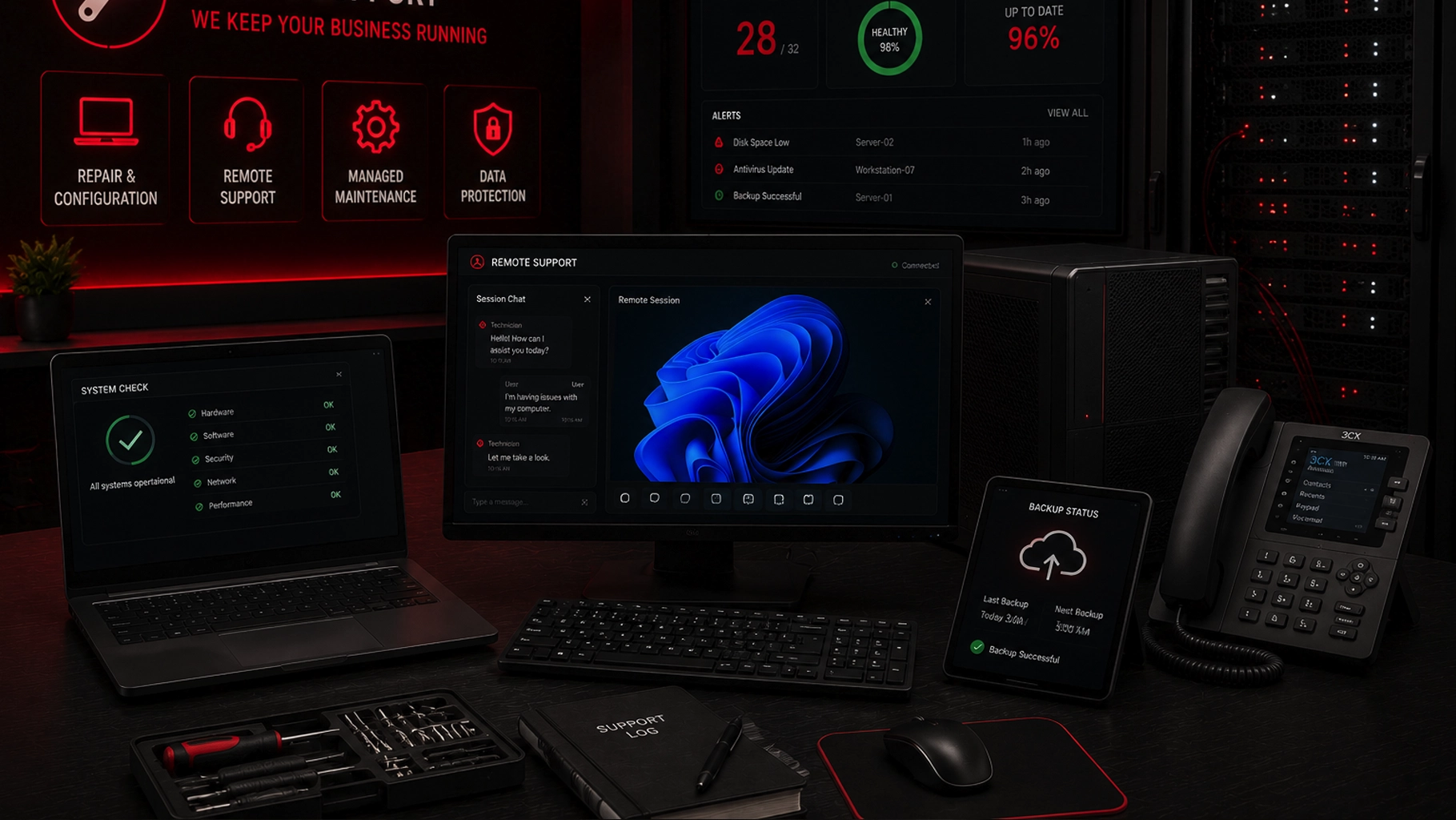
SMART Solutions provides Computer, Server & Device Support for business computers, servers, and connected devices, including configuration, maintenance, troubleshooting, and remote support. Our Cybersecurity Protection service also focuses on devices, access, network exposure, and practical risk reduction.
SMART takeaway
Onboarding should grant the right access on purpose — not copy whatever the last employee had.
Define the role, approved applications, device, security controls, and owner of each access decision before the employee starts. That creates a cleaner first day and a better record for future role changes and offboarding.
Quick answer: what should an IT onboarding checklist include?
Before the start date, confirm:
- Employee name, role, manager, location, and start date
- Approved computer, phone, and other assigned devices
- Email and identity account
- Required applications, groups, folders, and shared resources
- MFA and recovery methods
- Standard versus administrator privileges
- VPN or remote access when the role requires it
- Security, endpoint-management, and backup configuration
- Phone extension, voicemail, queues, or call groups if needed
- First-day sign-in test and support contact
The FTC recommends including secure remote-access information in new-staff orientations and checking devices against security requirements before they connect to the network.
Source: FTC — Cybersecurity for Small Business.
1. Start with the role, not the username
IT needs more than the person’s name.
Create a role profile that answers:
- Which department and manager own the request?
- Where will the person work?
- Which business applications are required?
- Which data should the person access?
- Do they need remote access?
- Do they need a phone extension or queue membership?
- Do they need access to shared mailboxes, calendars, drives, or folders?
- Does the role require privileged administration?
This prevents onboarding from becoming a chain of last-minute messages.
2. Assign a specific device
Document the device before it is handed over.
Useful inventory fields include:
- Asset tag
- Manufacturer and model
- Serial number
- Assigned user
- Operating system
- Warranty or support status
- Management and security status
- Expected replacement window
Our IT asset inventory guide explains how to connect devices with owners, purpose, lifecycle status, and recovery priority.
3. Prepare the device before the first sign-in
A new or reassigned device should have a known baseline.
Depending on the environment, that can include:
- Current operating-system updates
- Required business applications
- Endpoint protection
- Device-management or remote-support tooling
- Encryption where appropriate
- Browser configuration
- Printers and peripherals
- Backup or approved cloud-sync configuration
- Standard user account
- Removal of stale profiles or data from a previous user
Our endpoint hardening checklist covers the broader idea of reducing unnecessary attack surface while preserving the workflows employees need.
4. Create individual identities
Avoid solving onboarding delays with a shared password.
Create named accounts where supported so activity and access can be associated with the correct person.
Typical identities may include:
- Email and cloud identity
- Business applications
- File storage
- VPN or remote access
- Phone system
- CRM or customer systems
- Website or marketing platforms
Shared technical accounts may still exist for specific services or emergency use, but they should have a documented purpose and owner.
5. Enroll MFA and recovery methods
Do not make MFA an afterthought employees must discover on their own.
During onboarding:
- Register the approved MFA method
- Confirm the employee can sign in
- Verify recovery email or phone details where applicable
- Explain what to do if the authenticator is lost
- Store emergency or administrative recovery methods according to company policy
For services that support stronger methods, our phishing-resistant MFA guide explains passkeys, FIDO security keys, and WebAuthn.
6. Grant the minimum practical permissions
NIST CSF 2.0 implementation examples recommend least privilege and periodic review of access.
An onboarding request should identify what the role needs rather than granting broad access “just in case.”
Review:
- Department groups
- Shared folders
- Shared mailboxes
- Application roles
- Financial data
- Customer records
- Administrative functions
- Physical access where technology-managed
NIST also recommends reviewing logical and physical access when roles change or people leave and promptly rescinding privileges that are no longer needed.
Source: NIST — CSF 2.0 Implementation Examples.
7. Separate everyday accounts from administrator access
A user who administers systems does not necessarily need to perform email, browsing, and routine work with elevated rights.
Where practical, separate ordinary work from privileged administration.
This reduces the number of places where powerful credentials are used and makes privileged activity easier to review.
Our user access review checklist provides a recurring process for administrator rights, stale accounts, vendors, shared identities, and role changes.
8. Configure remote work deliberately
If the employee works remotely, document the approved path.
That may include:
- Company-managed laptop
- VPN
- Approved remote-support or remote-access application
- MFA
- Home-network expectations
- Restrictions on unmanaged devices
- File-storage rules
- Support contact
Our VPN and remote-access security checklist covers device security, authentication, permissions, logging, vendor access, and testing.
9. Include phone and communication access
IT onboarding often stops at email even though customer communication depends on the phone system.
For relevant roles, prepare:
- Extension
- Voicemail
- Mobile or desktop app
- Ring groups
- Call queues
- Caller ID policy
- Presence or chat tools
SMART Solutions provides VoIP Phone Systems that can support business calling, mobile access, queues, IVR, and related communication workflows.
10. Give the employee a short technology orientation
A first-day orientation can cover:
- How to contact support
- How to report phishing or suspicious activity
- Approved file-storage locations
- MFA and password expectations
- Remote-access rules
- How software requests are approved
- What to do with a lost or stolen device
- Basic phone and collaboration workflow
The objective is not to turn onboarding into a security lecture. It is to make the expected technology behavior clear.
11. Test the real workflow
Before considering onboarding complete, test what the employee actually needs to do.
Can they:
- Sign in to the device?
- Access email?
- Complete MFA?
- Open required business applications?
- Reach approved file locations?
- Use the phone system?
- Connect remotely when needed?
- Print or scan if the role depends on it?
A checklist is complete when the workflow works, not when accounts merely exist.
12. Preserve the onboarding record for later reviews
Store the approved access list and assigned-device record.
That record becomes useful when the employee changes roles or leaves because the business has a starting point for reviewing what changed.
Onboarding and offboarding should be two ends of the same identity lifecycle.
IT onboarding FAQ
When should IT onboarding begin?
As soon as the role, start date, manager, device needs, and required applications are known. Lead time helps avoid rushed access decisions and first-day delays.
Should IT copy another employee’s permissions?
A similar role can be a reference, but access should still be reviewed and approved. Copying permissions blindly can reproduce outdated or excessive privileges.
Does every employee need administrator rights?
No. Administrative privileges should be tied to a real job need and separated from routine use when practical.
Can SMART Solutions help prepare employee technology?
SMART Solutions’ Computer, Server & Device Support includes device configuration, maintenance, troubleshooting, and support. Security planning can also be connected with Cybersecurity Protection.
Authoritative sources
- FTC — Cybersecurity for Small Business
- NIST — Cybersecurity Framework 2.0
- NIST — CSF 2.0 Implementation Examples
Make the first day predictable
A good IT onboarding process gives the employee the tools required for the role without creating unnecessary access.
Define the role, prepare the device, create individual accounts, enroll MFA, test the workflow, and keep the record for future access reviews.
For help preparing business devices and user access, contact SMART Solutions.