

Conference Room Automation: A Practical Guide to Smarter Meeting Rooms
Plan a conference room that starts on time by coordinating displays, cameras, microphones, speakers, lighting, scheduling and simple controls.
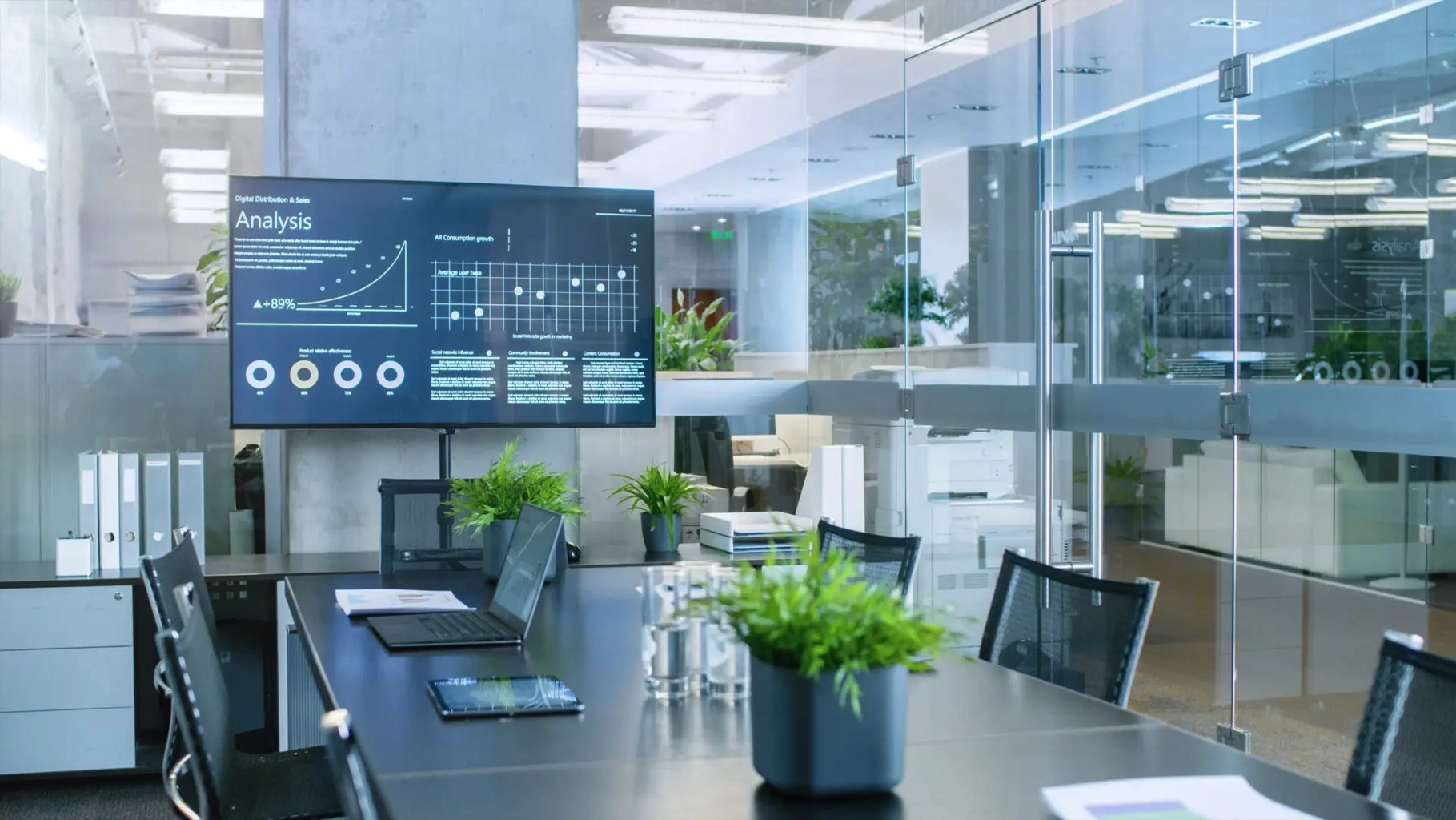
Conference room automation should make meetings easier to start, easier to control, and easier to support.
Instead of asking employees to manage a television, camera, microphone, speaker, laptop cable, lighting controls, video conferencing app, and room calendar separately, a well-planned system connects the pieces into a simpler meeting-room experience.
That can mean one-touch meeting join, automatic display power, consistent camera and microphone behavior, easier content sharing, room scheduling, lighting scenes, and controls that make sense even to someone using the room for the first time.
SMART Solutions provides smart office automation and audio/video automation for businesses that want conference rooms, meeting spaces, displays, microphones, cameras, lighting, and controls to work together instead of operating as disconnected systems.
SMART takeaway
A conference room should behave like one system, not a pile of devices.
The best automation plan starts with the meeting experience: how people reserve the room, enter, join, present, speak, collaborate, end the meeting, and get help when something goes wrong.
Quick answer: what is conference room automation?
Conference room automation connects the technology and room functions people use during meetings so common actions can happen through one interface, a preset scene, a schedule, or an automatic trigger.
Depending on the room, that can include:
- Displays and projectors.
- Video conferencing platforms.
- Cameras and camera presets.
- Microphones and speakers.
- Room controllers or touchscreens.
- Wireless or wired content sharing.
- Lighting and shades.
- Room scheduling panels.
- Network and AV infrastructure.
- Automated startup, shutdown, and room scenes.
The goal is not to automate every possible action. The goal is to remove the repeated steps that create friction before and during meetings.
Why conference rooms become frustrating
Many meeting rooms grow one device at a time.
A display is installed first. Later, a camera is added. Then a USB microphone. Then a speakerphone. Then a wireless presentation device. Then a scheduling tablet. Eventually, users are expected to understand which input to select, which remote to use, which cable goes where, and why the camera is not available in the conferencing app.
The room technically has everything it needs, but the user experience is still difficult.
That is where automation becomes useful.
A conference room automation project looks at the room as a complete workflow rather than a shopping list.
1. Start with the meeting workflow, not the equipment list
Before choosing a controller, camera, display, or microphone, document how people actually use the room.
A simple meeting workflow might be:
- Reserve the room.
- Enter and see what meeting is scheduled.
- Start the meeting with minimal setup.
- Show remote participants clearly.
- Make sure everyone in the room can be heard.
- Share a laptop or wireless presentation.
- Adjust volume, camera, or lighting when needed.
- End the meeting and return the room to a ready state.
Each step reveals a design requirement.
For example, if employees constantly search for remotes before presentations, the problem may not be the display. The problem may be that display power, input selection, and meeting controls are not coordinated.
Microsoft describes Teams Rooms as a meeting-space experience built around a touch console, compute device, displays, cameras, microphones, speakers, and one-touch meeting join. Its current Teams Rooms planning guidance reinforces the same principle: the room experience depends on the components working together, not just on individual hardware.
2. Make the room controller the simplest part of the system
The controller is the interface people touch when they want the room to do something.
That may be a tabletop touchscreen, wall-mounted panel, dedicated conferencing controller, keypad, or another approved control surface.
The controller should answer common questions quickly:
- What meeting is next?
- How do I join it?
- How do I share my screen?
- How do I change volume?
- How do I mute the room?
- How do I switch cameras or camera views?
- How do I turn the display on?
- How do I start a presentation scene?
Modern room platforms already support many of these functions. Microsoft Teams Rooms, for example, places the room calendar, meeting join, calling, and content-sharing actions on the touch console. Zoom Rooms controllers similarly provide meeting, microphone, speaker, camera, and display-related controls. See Microsoft’s Teams Rooms home-screen guidance and Zoom’s meeting controls documentation.
A custom automation layer can go further by connecting conferencing controls with lighting, shades, displays, or other room systems when the hardware and platform support it.
3. Design displays around what people need to see
A conference-room display is not just a large television.
It may need to show:
- Remote participants.
- Shared presentations.
- Room calendar or meeting details.
- Whiteboard content.
- Digital signage when the room is idle.
One display may be enough for a small room. Larger rooms may benefit from dual displays so remote participants and shared content do not compete for the same screen.
Microsoft’s current Teams Rooms device-selection guidance identifies a touchscreen console, display, camera, microphone, and speaker system as the core room components, while allowing larger or more flexible rooms to use separate cameras, microphones, and speakers.
The important design question is not simply, How large should the screen be?
It is:
Can everyone in the room comfortably see the people and content they need to see from the seats they actually use?

Photo by Vitaly Gariev on Unsplash, used under the Unsplash License.
4. Treat cameras as part of the room layout
Camera selection depends on room size, seating arrangement, display placement, and the type of meetings the business runs.
A small huddle room may work well with an integrated video bar. A longer boardroom may need a separate camera, wider field of view, optical zoom, presets, or multiple camera positions.
The camera should be planned around people, not simply mounted wherever a cable is easiest to reach.
Questions to review include:
- Can the camera frame everyone at the table?
- Will people at the far end of the room still be recognizable?
- Does the camera need presets for the table, presenter, or whiteboard?
- Will a display, window, or lighting condition create glare or poor exposure?
- Will the room ever need a second camera?
Zoom Rooms supports camera selection and PTZ controls on compatible systems, while Microsoft recommends choosing room devices according to the room design and the peripherals required. Those platform capabilities are useful, but they still depend on thoughtful camera placement and room design.
5. Give audio more attention than the screen
People often notice poor audio faster than they notice an imperfect image.
A meeting can continue if the video is not beautiful. It becomes much harder when remote participants cannot understand the people in the room.
Conference-room audio planning should consider:
- How many people the room holds.
- How far the farthest person sits from a microphone.
- Whether microphones are tabletop, ceiling, or integrated into a video bar.
- Speaker placement.
- Echo, reverberation, and hard reflective surfaces.
- Background noise from HVAC equipment or nearby spaces.
- Whether the room needs a digital signal processor or more advanced audio design.
Zoom’s own professional room examples scale microphones, speakers, cameras, displays, controllers, and network design according to room size. Its ProAV conference-room example shows why larger rooms often require more deliberate audio engineering than a simple USB speakerphone.
6. Automate lighting and room scenes where they remove real friction
Lighting automation is useful when the same room repeatedly changes between meeting modes.
A room may need different lighting for:
Crestron’s room-automation documentation describes the same kind of coordination: lighting, shades, HVAC, and AV equipment can respond to occupancy, schedules, or meeting events when the room has the necessary control hardware and programming. See Crestron’s room automation overview.
SMART Solutions’ smart office automation service includes conference-room automation, office lighting and scenes, presentation-system control, and connected workflow support.
7. Connect room scheduling to the actual space
A calendar reservation and a physical conference room should not feel like separate systems.
Room-scheduling panels can show whether a space is available, what meeting is next, and in some platforms allow a user to reserve an available room from the panel itself.
Microsoft Teams panels are designed for this use case and can display meeting details and room availability outside the room. Zoom Rooms scheduling displays can also show availability, reservations, and calendar information outside a meeting space. See Microsoft’s Teams panels planning guidance and Zoom’s Scheduling Display documentation.
For offices with several shared rooms, that can reduce the familiar hallway question: Is this room actually free?
8. Treat the network as conference-room infrastructure
Modern meeting rooms rely heavily on the network.
Video conferencing, wireless presentation, calendars, room controllers, device management, firmware updates, and IP-based AV controls may all depend on reliable connectivity.
A room can have premium cameras and microphones and still perform poorly if the network path is unstable.
Before deployment, review:
- Wired network availability at the room and equipment locations.
- Switching capacity and VLAN design where needed.
- Quality of service requirements for real-time audio and video.
- Wi-Fi coverage for wireless sharing and user devices.
- Static addressing or AV-network requirements for room-control equipment.
- Firewall, proxy, and cloud-service access requirements.
- Remote-management access for supported room devices.
Microsoft specifically recommends wired connectivity for Teams Rooms devices and calls network capacity and quality of service important deployment considerations in its Teams Rooms QoS guidance.
Zoom’s Room Controls documentation also supports controlling compatible third-party IP equipment through the room controller and describes configurations where AV-control traffic can be placed on a separate network interface. See Room Controls for Zoom Rooms.
If the room upgrade exposes weak Wi-Fi, missing cabling, or network-capacity problems, SMART Solutions also provides network and connectivity services.
9. Standardize rooms so employees do not relearn technology every time
One of the most useful automation decisions happens outside any single room: standardization.
If one meeting room uses a wall remote, another uses a touchscreen, another requires a laptop cable, and another only works through a wireless app, employees must relearn the process every time they change rooms.
A better approach is to define a small number of room standards.
For example:
- Huddle room: one display, integrated camera/audio bar, simple controller.
- Standard conference room: one or two displays, dedicated camera, microphones, speakers, touchscreen, scheduling panel.
- Boardroom: larger displays, expanded microphones, PTZ camera, advanced audio, room scenes, and centralized control.
The exact equipment may change, but the user experience should remain familiar.
Microsoft’s Teams Rooms planning tools now include standards and room-planning features for organizations that want to define consistent room types across buildings and locations. The broader lesson applies regardless of platform: standard rooms are easier to train, support, document, and expand.
Should you use Microsoft Teams Rooms, Zoom Rooms, or a custom AV system?
The answer depends on how your organization already communicates.
A business centered on Microsoft 365 may prefer a Teams Rooms experience. A company centered on Zoom may prefer Zoom Rooms. Some environments need open-platform or custom AV systems because they support several conferencing platforms or specialized room functions.
The room should be designed around the organization’s actual workflow, not around a logo on a controller.
Questions to ask include:
- Which conferencing platform does the company already use most?
- Do employees regularly join meetings hosted on other platforms?
- Does the room need wired and wireless content sharing?
- Does the business need calendar integration and room scheduling?
- Should lighting, shades, displays, or other systems connect to the conferencing interface?
- Who will manage updates, accounts, licenses, and device health?
Crestron Flex, for example, supports Microsoft Teams Rooms, Zoom Rooms, and open-platform unified-communications configurations, showing how conference-room hardware can be selected around different collaboration ecosystems. See Crestron’s Flex room-solution overview.
What should a business plan before installing conference room automation?
Before installation, document these decisions:
- Room size, seating layout, and expected capacity.
- Primary conferencing platform.
- Display size, quantity, and mounting locations.
- Camera field of view and required presets.
- Microphone coverage and speaker placement.
- Wired and wireless content-sharing methods.
- Touchscreen or controller workflow.
- Lighting, shade, and room-scene requirements.
- Scheduling-panel and calendar integration.
- Network, cabling, switching, and remote-management requirements.
- Support, documentation, and future expansion.
That planning step is where many future support problems can be prevented.
Meeting-room reality
The best room is the one employees can use without calling IT before every meeting.
Automation should reduce decisions for the user while preserving reliable controls, clear fallbacks, and supportable infrastructure behind the scenes.
Conference room automation for Miami and South Florida businesses
Businesses in Miami and across South Florida may be upgrading meeting rooms for hybrid work, client presentations, internal training, sales meetings, executive collaboration, or multi-location communication.
The right room can combine conferencing, presentation technology, audio, displays, scheduling, lighting, and controls into one cleaner experience.
SMART Solutions can help businesses plan and implement:
- Conference room automation.
- Smart office controls.
- Displays and projectors.
- Cameras, microphones, and speakers.
- Video conferencing equipment.
- Lighting scenes and presentation controls.
- Room scheduling and connected workflows.
- Network readiness for meeting-room technology.
Ready to simplify your meeting rooms?
Build the room around how your team actually meets.
SMART Solutions can help connect conference-room AV, controls, scheduling, lighting, and network infrastructure into a system that is easier to use and support.
Contact SMART Solutions to discuss conference room automation, smart office technology, or an AV upgrade for your business.